


Share photos and videos, record memories

Looking back on happy moments from time to time brings the two of you even closer. By default, photos and videos are saved at their original quality without compression (to save space, you can choose a compression level in "Upload Settings"). Try to record your ordinary days together too, even the ones without photos. You'll be glad you did when you look back later.
What is it?
- Keep everyday memories
Upload photos and videos, or write about what happened in a journal. Add tags or a note to each photo and video, and you'll easily find special moments later. - Record days without photos as memos
For days you didn't take photos but still want to write down, save a "memo." It's a quick record with just a date and some text. Memos appear in date order alongside your memories, and search finds them too. - Keep memories of trips and dates
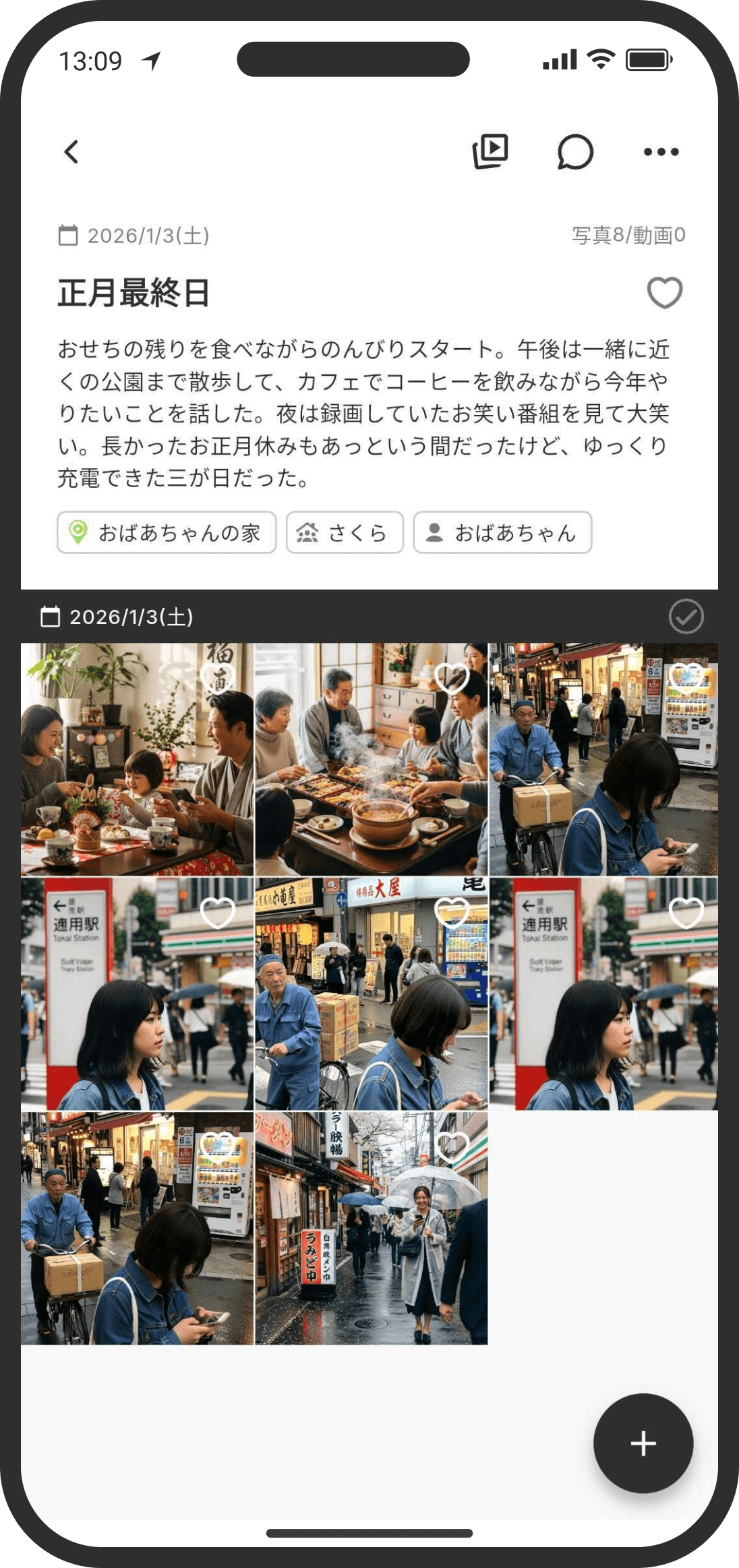
A "memory" is a place where you can write a journal and also gather photos and videos. With "sub-memories," which let you create memories inside a memory, you can split even a multi-day trip into "Day 1," "Day 2," and so on. - Keep memories of anniversaries
When you create a memory, you can link it to an anniversary saved in COUPPLY. Linked memories are also listed on the anniversary page, which makes it perfect for looking back on special days all together. - Look back on memories
COUPPLY has plenty of ways to enjoy looking back on all the memories you've built up. A random memory widget on the Home screen, memories shown on the calendar and map, keyword search across memo text and titles, hashtag filters, and favorites all get you to your favorite photos and videos in no time.
The Memories top page
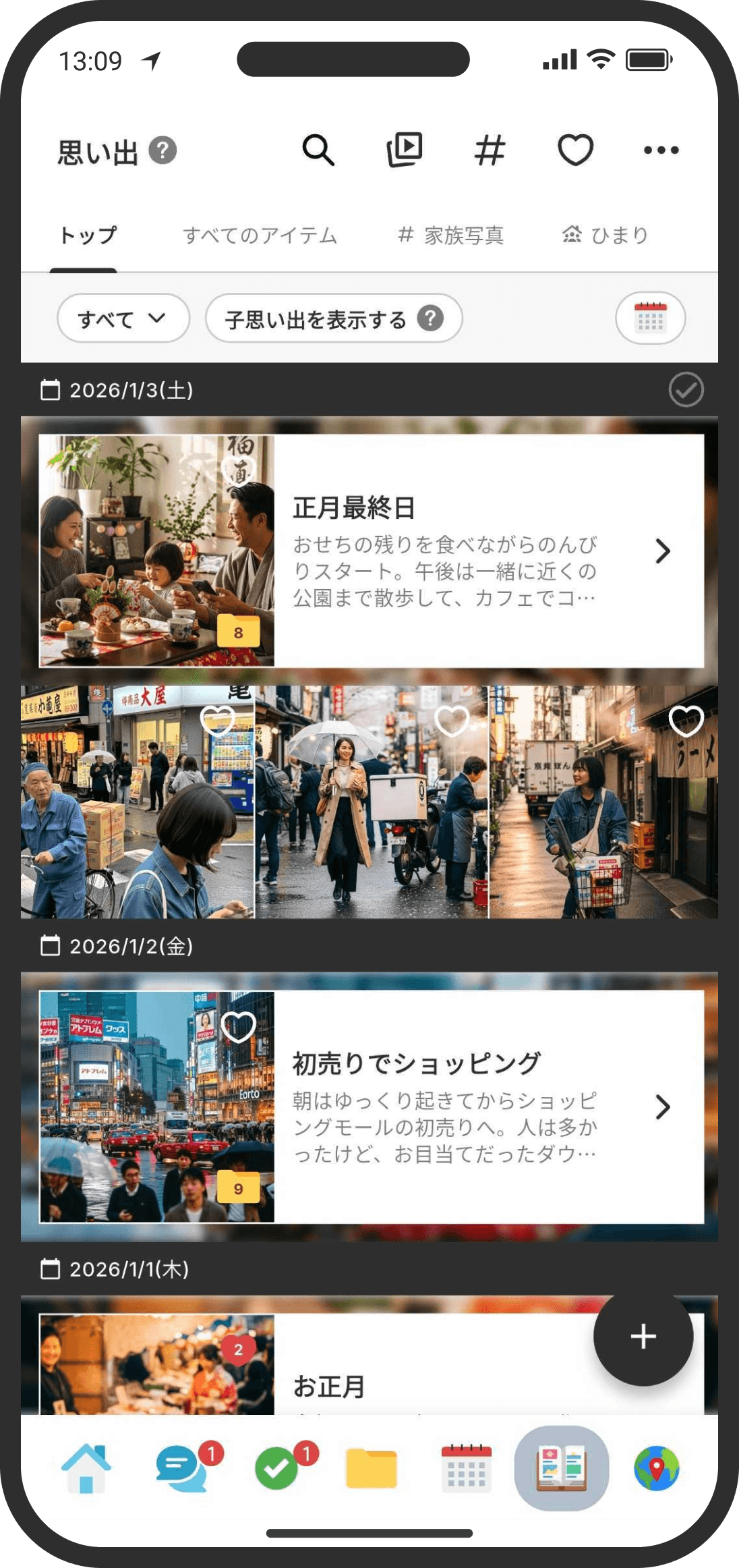
Open the Memories top page from "Memories" in the bottom menu or from the "Memories" widget on the Home screen.
- Top: The main tab for looking back on your journey together in order. Memories (which work like folders) and items (photos and videos) that aren't in any memory are listed by date. It's like the "desktop" on a computer: you can upload straight to it and gather things into memories later.
- All Items (gallery): Use this to browse all your uploaded photos and videos at once. Items inside memories show up here too.
- Icons at the top of the screen
- 🔍 Search: Search across memory titles and text, notes on items, and hashtags. Handy for "What did we write back then?"
- ▶️ Slideshows: A separate feature for freely combining uploaded photos and videos into slideshows with music. In the slideshow list, tap a slideshow to play it, or long-press to open the edit/delete menu. Create a new slideshow with "+" at the bottom right.
- # Hashtags: Opens the hashtag list. Manage tags by categories like "Family," "People," "Places," and "Important," and pin the ones you use often to the Memories top page. Tap a tag to see only the memories and items with that tag.
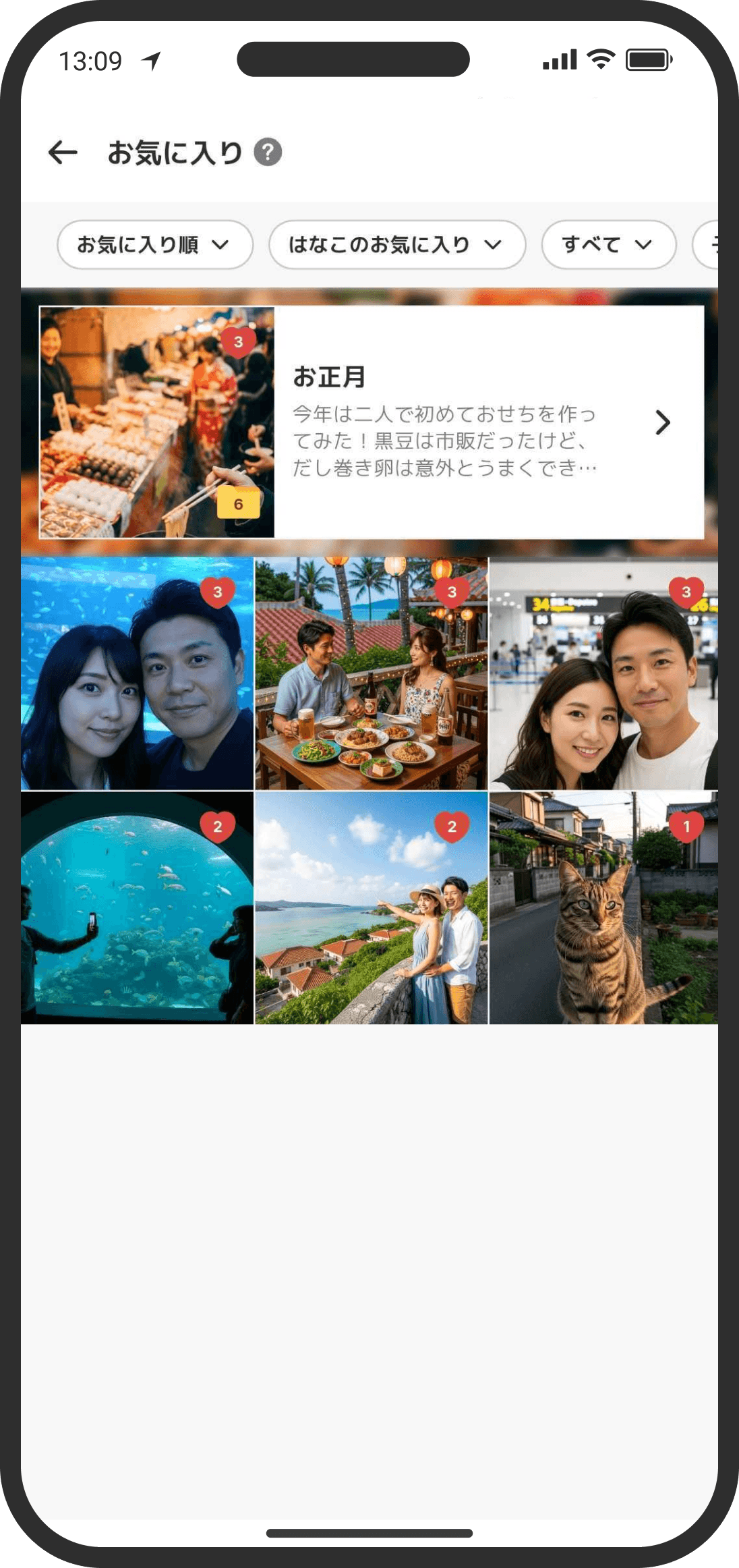
- ♡ Favorites: Opens a screen with only the items and memories you've hearted. It starts with "items you favorited, sorted by most favorites," and you can switch to your partner's favorites, "Newest First," and more from the filter at the top.
- From the "+" icon at the bottom right, choose "Upload Photos or Videos," "New Memory," or "New Memo." Where you tap "+" changes where things go and what's added: from the Memories top page, uploads go straight to Top; from inside a memory, they go into that memory; and from a tag page, they're uploaded with that tag already added.
Upload photos and videos
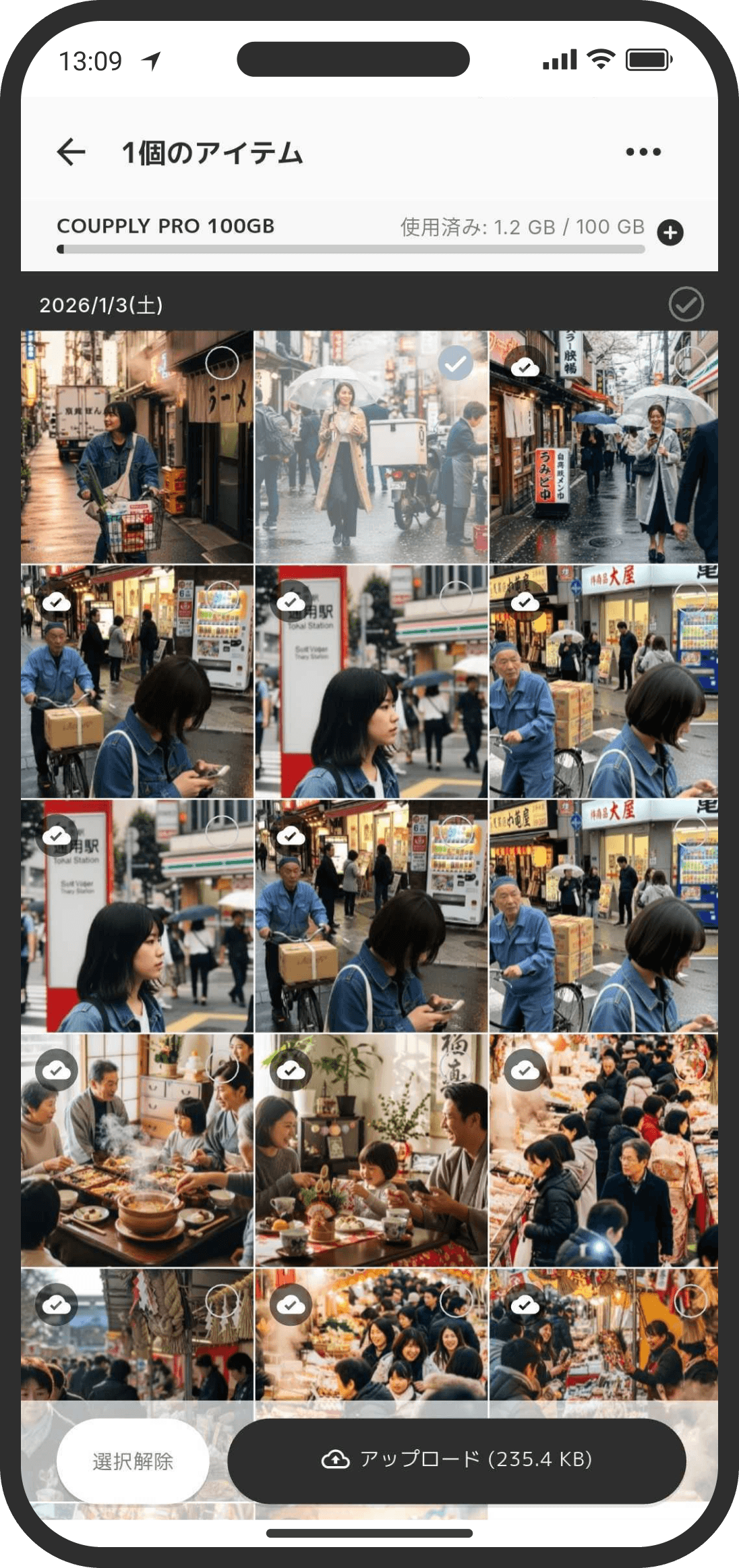
- Pick photos and videos from your device with "+" on the Memories top page, a memory's page, the gallery, or a tag page, and upload them. You can also add them while creating a memory.
- The photo picker loads your device's photos a little at a time, newest first. When you're adding to a memory, it loads up to that memory's date and scrolls there automatically (older dates take a bit longer to show). If the loading method is set to "Load Gradually," it starts near the memory's date and doesn't load newer photos and videos (to see your latest photos, pull down on the screen to refresh).
- Change how the gallery loads from "..." at the top right of the Memories top page, then "Upload Settings," or from Settings, then "App & System," then "Upload Settings." There are two options: Load All (loads everything first; this is the usual choice) and Load Gradually (loads a little at a time as you scroll). If the app crashes on the photo picker, try switching to "Load Gradually."
- From "..." at the top right of the photo picker, then "Display Settings," you can choose Sort Gallery By. The default is Date Taken. If the order is different from your device's photo app and photos are hard to find, try switching to Date Edited. Photos without an edit date are shown by date taken. This setting only changes the order. It doesn't change the date taken recorded in your memories.
- While uploading, a black bar at the top of the screen shows the progress, like "Uploading (3/10)." When the upload finishes, your partner gets a notification, and the upload is recorded in the timeline.
- When your signal is weak, you can upload later. Tap "Pause" on the right of the bar to stop sending, and the bar changes to "Paused." Somewhere with a good signal, tap "Resume" on the bar to continue from where it stopped. It doesn't resume on its own.
- The item that was being sent starts over from the beginning when you resume.
- If anything couldn't be sent, the bar changes to "[number] failed." Tap "Resume" to retry all the failed items at once. You can also tap the bar to open "Upload Status," where you can retry (↻) or cancel (×) items one by one. If you cancel the item being sent and everything else has finished, the upload completes right then.
- Pause only stops photos and videos going into memories. Attachments to chats, events, statuses, and so on keep sending while paused (if one fails, there's no retry (↻) button, so attach it again).
- If you close the app while uploads are paused or have failed, they're still there as "Paused" the next time you open it. Nothing is sent until you tap "Resume."
- Keep the app open while uploading. Closing the app stops sending (whatever stopped is kept as "Paused" the next time you open the app).
- If a photo has location info (EXIF), it's read automatically and shown as a pin on Our Map (the Map tab). Each pin shows the newest memory photo at that place (or the cover photo, if you've chosen one), and the number at the top right is how many memories and photos are at that place. If a photo hasn't loaded yet, or a place has no photos, the pin is a round one with just the number.
- By default (compression level "Original"), photos and videos are saved at their original quality without compression. Only small thumbnail images for lists are created separately.
- To save space, change the Compression Level in "Upload Settings." Photos are then made smaller (lower resolution) and lower in quality before they're saved.
- Light: Shrinks the long side to 2560px. Looks almost the same.
- Medium: Shrinks the long side to 1920px. Hard to tell on a phone, but slightly blurry when zoomed in.
- Strong: Shrinks the long side to 1280px. Noticeably grainy when zoomed in.
- Videos are also lowered in resolution at the same levels (Light: Full HD / Medium: HD / Strong: 540p).
- On the settings screen, you can compare the file size and quality after compression using a sample photo (or a photo you pick with "Try with your own photo").
- Compression applies to photos and videos you upload by picking them from your album (in memories, chats, events, statuses, pages, data, and trip plan attachments, plus photos and videos shared from other apps).
- Not compressed: things attached from "Files" (use this when you want to keep the original as is), PNG and GIF images, and images like profile pictures, icons, stickers, and backgrounds.
Upload files
- Besides photos and videos, you can put files like PDF, Word, Excel, and zip into memories too. Choose them with "+" on the Memories top page or a memory's page, then "Upload a File."
- If you choose an image or video with "Upload a File," it's saved as a photo or video (a thumbnail is created, and you can open it right away with a tap). Only files that can't be previewed, like PDF or Word, are shown as an icon.
- Files appear in the same list as photos. Since they can't have thumbnails, they're shown with an icon for the file type and the file name.
- Tap a file to choose "Preview," "Edit Memo & Info," "Send," or "Download." Only PDF, HTML (.html), Markdown (.md), and text (.txt) files can be previewed. For other files, use "Send" or "Download" to open them in another app.
- With "Edit Memo & Info," you can add a note, place, and hashtags, just like with photos.
- Filters such as the one on the "All Items" tab now include "Files only." Use it when you want to find just files.
- Files can't be used as cover photos or in slideshows.
- Files are encrypted and stored just like photos, and they count toward your storage.
Create a memory
- Tap "+" at the bottom right of the Memories top page, then "New Memory," to open the creation screen.
- On the creation screen, you can set the following.
- Title: If you leave it empty, it's filled in from the date, like "Memory from [date]."
- Date: Set just a start date (a memory of one day), or add an end date for a period, such as a trip spanning several days.
- Memory Details: Write freely about the memory. You can include URLs too.
- Places: Link multiple places to one memory. If any calendar events registered during that period have places, they're suggested. If there are no suggestions, search for a place and choose a shop or facility. Once you set a place, the memory appears on Our Map and under the place's memories on its detail page.
- Hashtags: Add as many tags as you like. You can filter by tag later.
- Anniversary: Link it to an anniversary, like the day you started dating or a birthday.
- Linked pages and files: Link it to threads, lists, and the Wiki (memos, data, files, and folders). For example, a PDF you made for your wedding can't be uploaded to a memory, so you could create a folder like "Wedding" in the Wiki and link it to the memory.
- Photos and videos: Pick them from your device's gallery and upload them together. You can also add them later with "Add Uploaded Items."
- Right under the date, events and holidays registered on that day (or during that period, if you set one) appear as small tags. While you're typing a title or the memory details, tap a tag to insert that event's name at the cursor. If no field is selected, tapping copies it so you can paste it anywhere later. Tap the date (📅) to see the details of that day's events.
- When you create it, your partner gets a notification, and "Created a memory" is recorded in the timeline.
- The small image shown in the memory list is called the "cover photo." By default, the newest item in the memory is used automatically. To change it to an image of your choice, after creating the memory, long-press it in the memory list, or tap "..." at the top right of the memory's page and choose "Set Cover Photo."
Write a memo
- Tap "+" at the bottom right of the Memories top page, then "New Memo," and an input screen slides up. You don't leave the page, so you can close it as soon as you're done writing.
- You can have one memo per day. If there's already a memo for that day, instead of making a new one, you open that memo and add to it.
- You only set two things: the date and the text. It's for leaving short records, more casually than a memory.
- Date: Choose the day it happened. It starts as today.
- Text: Write whatever you want to remember. This is required.
- There's no title. In the list, the text itself is shown.
- Once saved, it appears as a white card right under the date on the Memories top page. As a note for that day, it's the first thing you see, before photos and memories.
- Unlike memories, which gather photos, a memo isn't a container like a folder.
- Writing a memo doesn't send your partner a notification and doesn't appear in the timeline. That's so you can write freely. Your partner will see it when they open the Memories top page or the calendar (the content is shared between the two of you).
- You can't add places, hashtags, anniversaries, linked pages, or photos to a memo, or favorite it. If you want those, create a "memory" instead.
Edit or delete a memo
- Tap a memo in the list to show the "Edit Memo" and "Delete Memo" menu (unlike memories, there's no detail page). Editing uses the same slide-up screen.
- When editing, you can change the date and the text.
- Deleted memos can't be restored.
FAQ (memos)
- Q. Do memos show up in search? Yes. You can search the words in their text along with your memories.
- Q. Can I add photos or a place later? No. If you want to keep photos or a place, create a "memory."
- Q. Do memos appear on Our Map? No. Memos don't have a place, so they aren't shown on the map.
- Q. Can I make a second memo on the same day? No. It's one per day, so open that day's memo and add to it. Changing the date makes it a different memo.
- Q. Do memos show up in the random memory widget on the Home screen? No. That widget is for showing photos, so memos aren't included.
- Q. Can my partner see my memos? Yes. Like memories, they're shared between the two of you. But since no notification is sent, your partner will notice them when they open the Memories top page or the calendar.
Tip (memos)
The days that feel like "nothing happened" are often the ones that are most touching to read back later. Even without photos, leaving just one line keeps your days together connected.
Edit or delete a memory
- Open a memory and choose "Edit Memory" or "Delete Memory" from "..." at the top right.
- Add more items from "+" inside the memory's page with "Add Uploaded Items" or "Upload Photos or Videos." You can also pick photos and videos with "Select Images" on the "Edit Memory" screen; they're uploaded to that memory when you save. Long-press an item to show a menu at the top, and use the album icon ("Move Items") to move it to an existing or new memory.
- If your partner was editing the same memory while you were, a screen appears asking whether to overwrite.
- A memory with sub-memories can't be deleted until all of its sub-memories are deleted.
About photos and videos
- To add items (photos or videos) to a memory, you can upload new ones or add ones you've already uploaded. So you can upload all your images to Top first and organize them later.
- When you open an item, a compressed version (thumbnail) is shown first to keep data use and loading light. To see the original quality, while the image is shown, choose "View in Original Quality" from the menu at the top right, or by long-pressing the item. The full-size image loads, so it stays sharp even when you pinch to zoom (not available for videos, and not shown while you're over your storage limit).
- When you save to your device with "Download" in the menu at the top right (or with bulk download in selection mode), the original file you uploaded (full size, uncompressed) is saved as is. Even if you're viewing the compressed version, the download is the original, so it's saved to your device without losing quality.
- Open an item and tap the note area at the bottom to open the details screen, where you can check and edit the date taken, note, place, and hashtags. Tap the date or time to fix the date taken. For some photos, the Date Modified (the last time the photo was edited on the device) also appears below it. This simply shows the recorded info and can't be edited.
- To delete a single item, open it, tap "..." at the top right, and choose "Delete Item." If you want to take it out of a memory without deleting it completely, long-press the item inside the memory's page, tap the trash icon, and choose "Remove from Memory" (it moves to Top).
- To select several items and act on them at once, long-press an item to enter selection mode, then swipe across the top right corners of items to select them. In selection mode, a bulk action menu appears at the top, with the following actions.
- Download: Download all the selected items. On the free plan, you can download up to 5 at a time.
- Set hashtags and location: Add or remove hashtags or location info on all the selected items at once. Each item can have only one location, so it's overwritten.
- Add to an album: Create a new memory or move them into an existing one.
- Bulk delete: Delete the items all at once.
Get the most out of tags (hashtags)
- Tags are for sorting photos, videos, and memories. Group them with any words you like, such as "#trip" or "#selfie," and you can filter them all at once later.
- Create a tag: Tap the "#" icon at the top of the Memories top page, then "+" at the bottom right of the tag list. You can give a tag a category like "Family," "People," "Places," or "Important," and change it later.
- Add to a single item: Open the item and tap the note area at the bottom to open the details screen, where you can add hashtags right there.
- Add to several items at once: Long-press an item to enter selection mode, then use the "#" icon at the top to set or remove tags in bulk.
- Pin tags you use often: In the tag list, long-press a tag and choose "Show in the Memories Tab" to pin it to the top of the Memories top page.
- Edit or delete a tag: In the tag list, long-press a tag, then choose "Edit Tag" to change its name or category.
Favorite things
- Tap the heart icon on items and memories you want to see again and again. Tap repeatedly to raise the favorite count. Long-press to remove the favorite.
- Open the Favorites screen from the heart icon at the top of the Memories top page. It starts by listing "items you favorited," sorted by most favorites. Use the filter at the top to switch to your partner's favorites, "Newest First," and more.
Sub-memories (memories inside a memory)
- Split a big memory, like a trip, into smaller ones for each day.
- Sub-memories are listed in date order. Sub-memories on the same date are ordered by the number in their titles ("Day 1," "Day 2," … "Day 10").
- Create one from "+" on the memory's page, then "New Sub-memory." Each sub-memory can have its own photos, videos, places, and more.
- To delete the parent memory, you need to delete all of its sub-memories first.
Free up space on your device
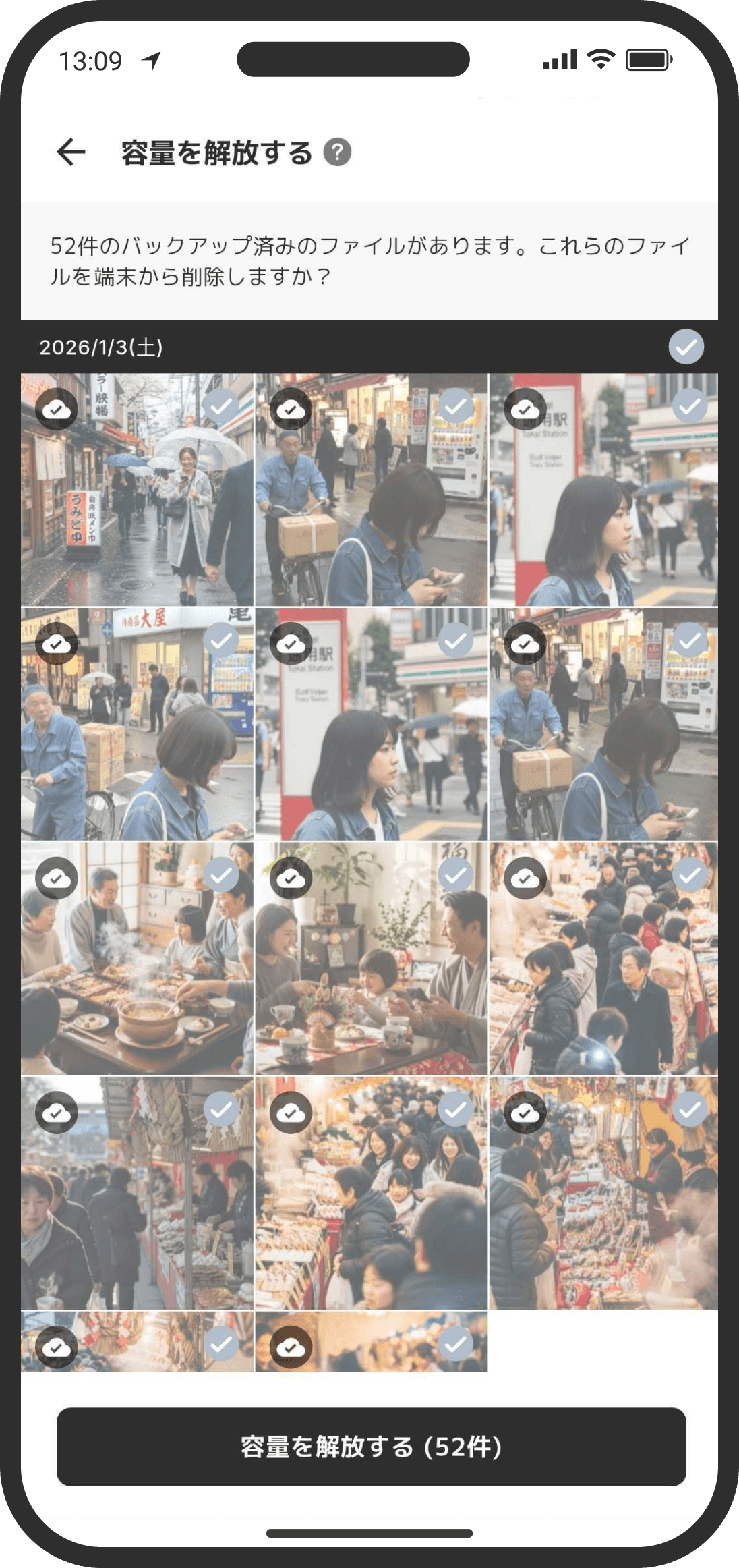
- This deletes items you've already uploaded to COUPPLY from your device (your phone itself) to free up storage. The items stay in COUPPLY.
- Open it from "..." at the top right of the Memories top page, then "Free Up Space." Your uploaded files are matched automatically and checked. Uncheck only the items you want to keep on your device, then tap the "Free Up Space" button.
- All images and videos saved in COUPPLY are included, even ones your partner uploaded. Matching uses file hashes (unique identifying codes), so items that became different files through copying, editing, or compression may not be recognized as the same.
- Items you free up usually go to your device's "Recently Deleted" for a while. To delete them completely, follow your device's steps.
Display Settings
- Change the sort order and thumbnail size for memories and the gallery. Open it from "..." at the top right of each page, then "Display Settings."
- Sort Order: The order of the memory and gallery lists. The default is newest first. To look back on older memories, switching to "Oldest First" is handy.
- Sort Order Inside Memories: The order of the photos inside a memory when you open it. To help you look back on that day's events in order, the default is "Oldest First." You can set it separately from the lists.
- Sort Gallery By: Choose whether the photo picker (gallery) sorts your device's photos by date taken or date edited. The default is date taken.
- Item Display Size: Make items smaller or larger with the slider. Moving it toward "S" shows more items at once.
- The settings apply everywhere except the Favorites page. They're saved on each device and aren't shared with your partner.
Put a Memories widget on the Home screen
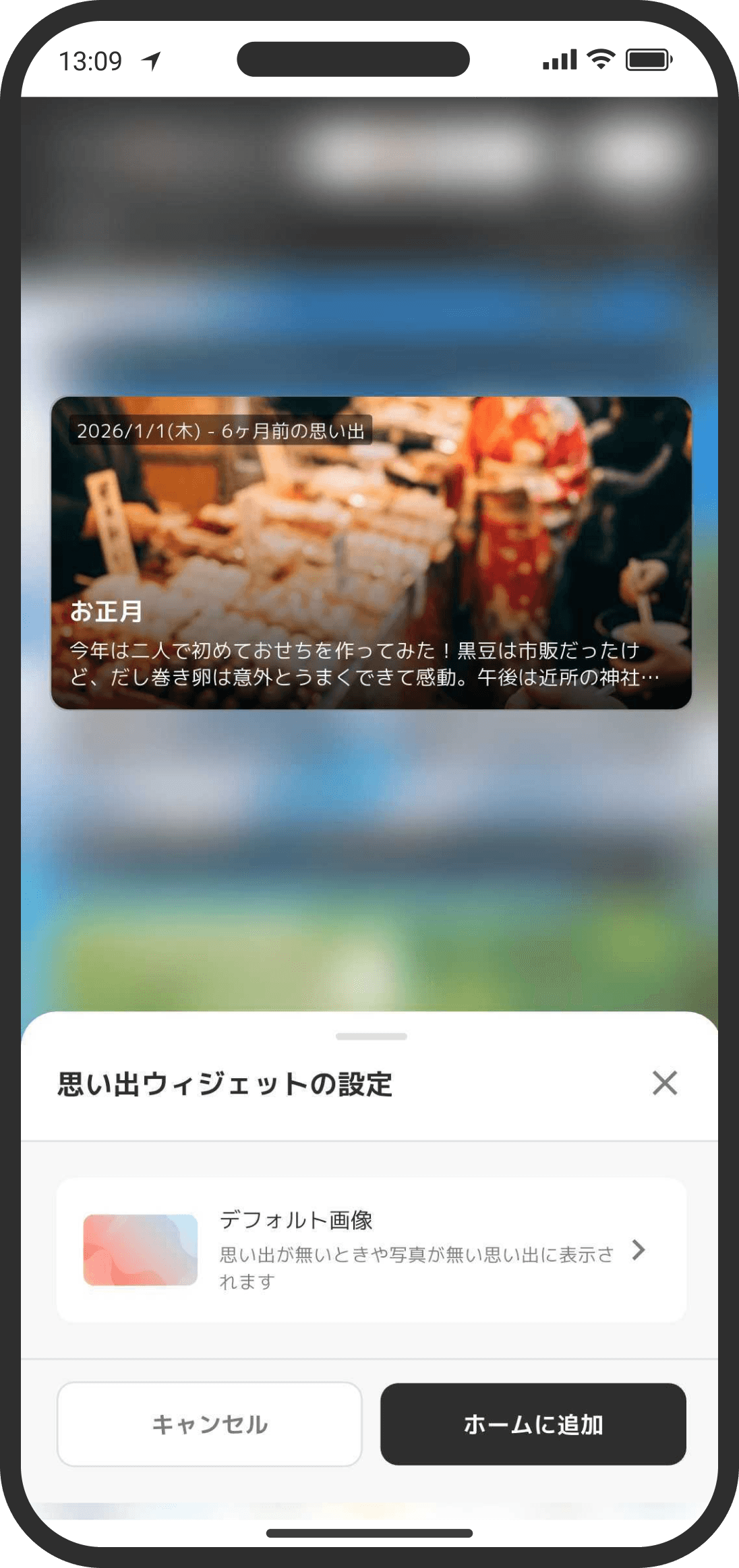
- On the Home screen, go to "Home Screen Settings," then "Add Widget," and choose "Memories" to show one memory large on your Home screen. Tap it to open the details.
- What's shown changes every hour. If you and your partner use the same settings, you both see the same thing at the same time.
- Content to Show: In the widget settings, choose what to show.
- Memories only (the default): Shows only memories you've created.
- Memories and items: Shows both memories and the photos and videos you've uploaded.
- Items only: Shows only the photos and videos you've uploaded.
- Even if you haven't created many memories yet, choose "Items only" or "Memories and items," and your photos and videos rotate every hour so you can look back on the past.
- When a photo or video is shown, you'll see the date it was taken and how many years ago that was. If it's inside a memory, the memory's name is shown too. Tap it to open it large (videos can be played from there).
- Videos appear as still images (thumbnails) on the widget. They never play inside the widget.
Storage & limits
| Item | Free plan | COUPPLY PRO (varies by plan) |
|---|---|---|
| Per file | Up to 1GB | Up to 1GB |
| Total uploads per day | 50MB | No limit (up to your storage limit) |
| Storage (total) | 3GB | 100GB / 500GB / 1TB / 2TB |
FAQ
Q. Can my partner see it? Will they be notified?
Yes. It's shared, and your partner can see it. When you create a memory, update it, or add photos or videos, your partner gets a notification for each. If your partner has turned off "Memories" in their notification settings, they won't get it (the memory itself still shows on their screen).
Q. Can I add as many photos as I want?
The limit is on total storage, not the number of photos. The free plan has 3GB in total, and COUPPLY PRO has 100GB to 2TB depending on the plan. There's also a limit on how much you can upload per day (50MB on the free plan, no limit on COUPPLY PRO).
Q. I want to delete just one photo
Open the photo, tap "..." at the top right of the screen, and choose "Delete Item."
Q. I get an error when I try to delete
The file may be damaged. Try deleting a few items at a time, and if it still won't delete, contact us. It helps if you can tell us details like the date and time of the file you can't delete.
Q. What are "sub-memories"?
A way to split a big memory into smaller ones. You can create memories inside a memory.
Q. What if we're both editing at the same time?
Whoever saves second sees a screen saying "Looks like your partner was editing at the same time!" You can choose to overwrite or discard your own changes.
Q. When does the Memories widget on the Home screen change?
It switches to something else every hour. If you both use the same settings, you see the same thing, so you can share the same view when you happen to look back. If your "Content to Show" setting is different from your partner's, you each see something different.
Q. I don't have many memories, so the widget always shows the same thing
In the widget settings, change "Content to Show" to "Items only" or "Memories and items." Your uploaded photos and videos are included too, so you'll see all kinds of photos every hour.
Q. Is it OK to close the app while uploading?
Uploads only run while the app is open, so try not to close the app until the upload is done. Photos and videos picked from your album are kept as "Paused" the next time you open the app even if you close it partway, so you can continue sending with "Resume" on the bar at the top of the screen (files picked with "Upload a File" aren't kept, so choose them again).
Q. The upload isn't moving because of a bad signal
Tap "Pause" on the bar at the top of the screen, then tap "Resume" somewhere with a good signal, like on Wi-Fi. Paused photos and videos aren't visible to your partner yet, and no notification is sent. Your partner gets the usual notification once everything has been sent.
Q. A paused or failed photo says "Couldn't find this photo on your device"
If you delete the photo from your device's photo app, or remove photo access, while it's paused, it can't be sent. Restore access and tap "Resume," or if you don't need to send it, cancel it with × in "Upload Status." Paused items are kept only on this device, so they're lost if you change phones or reinstall the app.
Q. It says "Today's upload limit exceeded"
The free plan allows up to 50MB per day. You can upload again once the date changes. To upload without worrying about the daily limit, try COUPPLY PRO.
Q. It says "The file is larger than 1.0GB"
Each file can be up to 1GB. Split large videos or make them smaller.
Q. It says "Some files you selected are already uploaded"
The selection includes photos or videos you've uploaded before. You can choose to exclude the duplicates or upload them anyway.
Q. I get an error, or it stops partway, when uploading or adding photos
It fails more easily when your phone is low on free memory. Try these: (1) tap "..." at the top right of the Memories top page, then "Upload Settings," and switch to "Load Gradually"; (2) restart your device; (3) close heavy apps (also see the "Trouble with photos and memories" help topic).
Q. What happens when storage is full?
Clean up older items, or get more storage (100GB to 2TB) with COUPPLY PRO.
Q. Does photo quality drop?
Not by default (compression level "Original"). The original file is uploaded as is, and only thumbnail images for lists are created separately. If you've set the compression level from Light to Strong in "Upload Settings," quality is lowered to match that setting when saving.
Q. If I change the compression level, do already uploaded photos get smaller too?
No. It only applies to photos and videos you upload after the change. This setting also only applies to uploads from your own device. Your partner isn't notified, and it doesn't affect your partner's uploads.
Q. I've set a compression level, but how do I keep something at its original quality?
Attach it from "Files." Things attached as files aren't compressed. PNG and GIF images aren't compressed either.
Q. If I downgrade my COUPPLY PRO plan, what happens to my saved photos?
Data you've already uploaded is never deleted. But while you're over the storage of your downgraded plan, downloading and viewing files are limited. Upgrade again and everything works as before.
Q. My device's photo storage is full
Tap "..." at the top right of the Memories top page, then "Free Up Space," to delete items already uploaded to COUPPLY from your device all at once and make room (the items stay in COUPPLY).
Q. When I open a memory, gray squares are lined up and no photos appear, or I see "Failed to load"
When your connection is unstable, loading photos and memories can take a while. Gray squares (a loading placeholder) show until loading finishes, and then the list appears on its own. If loading fails, you'll see "Failed to load." Check your connection and tap "Reload." "No items yet" only appears when loading has finished and there really are no items. Your saved items haven't disappeared.